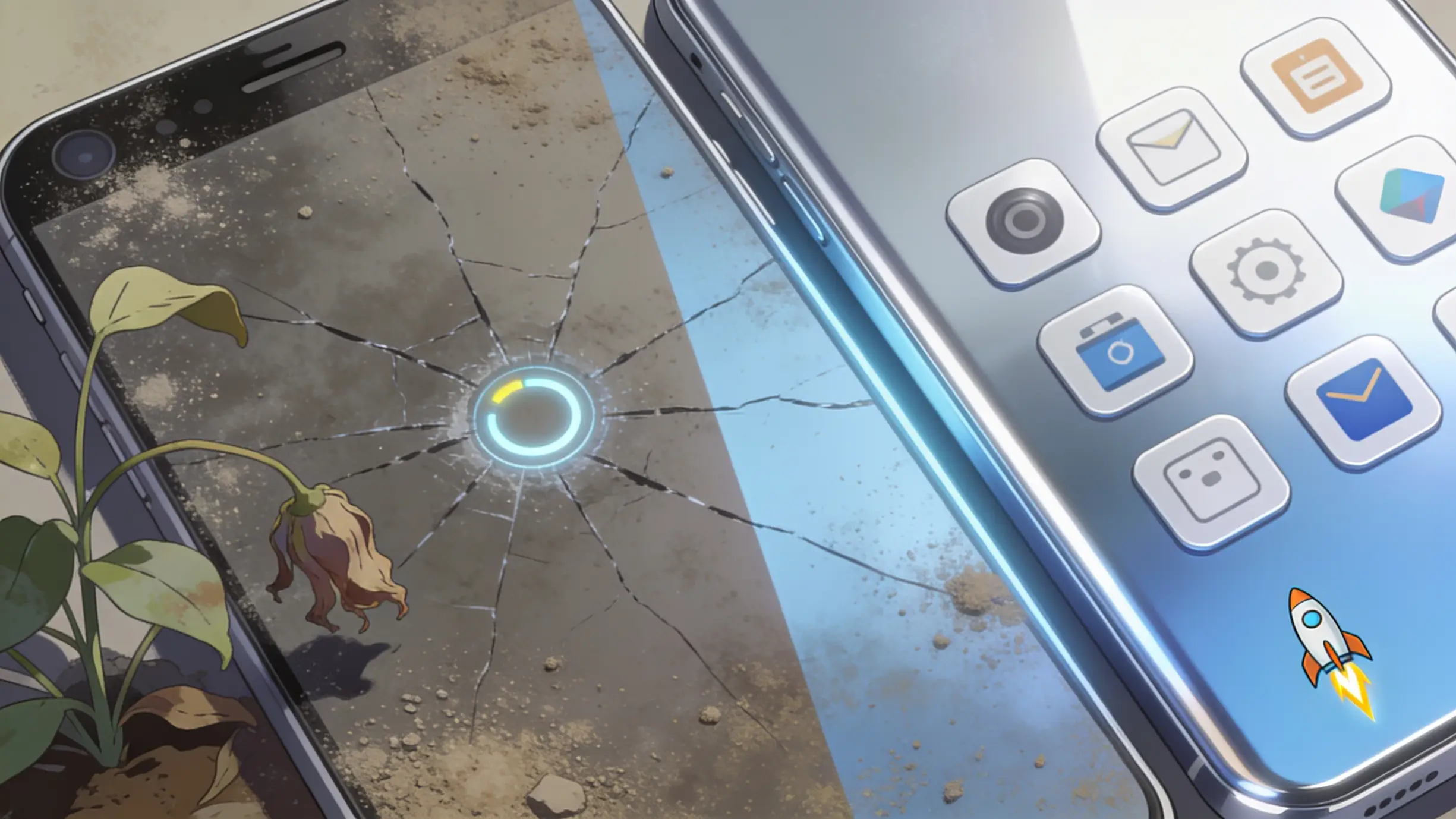
My Redmi Note 9 started acting slow about a year and a half after I bought it. Apps that used to open fast now took three or four seconds. The keyboard felt slow too. Every letter came up half a second late.
The worst part? My phone would freeze for a few seconds while I scrolled through Instagram. Like it needed rest.
My first thought was simple: “I guess I need a new phone.”
But before buying one, I searched online and tried a few fixes myself. I gave it one weekend. And guess what? My phone felt fast again. Not brand new, but close enough that I saved my money.
If your Android phone feels slow and laggy, don’t rush to buy a new one yet. Give me a few minutes. I will show you exactly what I did. I will also tell you what did NOT work, so you don’t waste your time like I did.
Why Does an Android Phone Get Slow?
Nobody explains this when you buy a phone. But there are simple, boring reasons why your phone slows down over time.
Your storage gets full. When your phone storage crosses 90% full, Android struggles to work well. I checked my phone and found 95GB used out of 128GB. Most of it was old WhatsApp photos and videos I never asked for.
Apps get bigger with updates. That small app you installed two years ago is now much bigger. It has more features you don’t even use.
Too many background apps. Every app you ever opened stays active in the background. It quietly uses your phone’s memory and battery.
Software updates add more weight. New Android updates bring more animations and background services. Older phones find it hard to handle all this extra load.
None of this means your phone is broken. It just needs some cleaning. Just like a room gets messy if you never clean it.
Step 1: Check What Is Using Your Storage
First, go to Settings > Storage. Look at what is taking up space. Most phones show this in simple categories like apps, photos, and videos.
When I checked mine, I found two surprises. My WhatsApp folder alone had almost 12GB of old photos and videos. I also found an app called Files by Google already sitting on my phone, unused.
If you don’t have this app, download it. It’s free and made by Google. It shows you junk files, duplicate photos, and apps you don’t use anymore. You can grab it directly from the Files by Google page on the Play Store. I cleared almost 8GB in one sitting just using this app. If you want a full walkthrough of its features, Google also has an official Files by Google help guide.
Step 2: Delete Apps You Don’t Use
This sounds simple, but most people skip it. They think, “I might need this app someday.”
But you probably won’t use it. And even apps you don’t open still run quietly in the background.
Look through your app list and ask yourself: Have I opened this in the last two months? If not, delete it.
I deleted a food delivery app I used only once. I also removed a fitness app I gave up on in a week, and three games I don’t even remember installing.
You can check app usage in Settings > Apps > [App Name] > Usage on most phones. It’s a bit shocking to see how many apps you never touch. If you’re not sure how, Google’s own manage apps on Android help page walks you through it step by step.
Step 3: Clear the App Cache
Many people think clearing cache is a magic speed trick you should do every day. That’s not true. Doing it too much can actually slow apps down, because they need to rebuild the cache again.
But if you haven’t cleared it in months, it’s worth doing once.
Go to Settings > Storage > Cached Data and clear it. Or clear it app by app using Settings > Apps > [App] > Storage > Clear Cache.
When I did this, I got back almost 3GB of space. Most of it was from Chrome and Instagram.
Step 4: Turn Down Animation Speed
This step surprised me the most. Android has a hidden menu called Developer Options. It lets you control how fast animations play. This doesn’t make your phone faster technically, but it feels much faster.
Here’s how to turn it on:
- Go to Settings > About Phone.
- Find Build Number and tap it seven times.
- Go back to Settings > System > Developer Options.
- Find Window Animation Scale, Transition Animation Scale, and Animator Duration Scale.
- Set all three to 0.5x. Or turn them off completely for the fastest feel.
This one small change made my phone feel much quicker. It’s a simple trick, but it really works. You can read more about what Developer Options does on the official Android Developers configure on-device options page.
Step 5: Turn Off Unwanted Pre-installed Apps
If you bought a phone from a brand like Xiaomi, Samsung, Oppo, or Vivo, it probably came with apps you never wanted. A random browser, a “cleaner” app, or some extra games.
You often can’t delete these apps fully. But you can disable them.
- Go to Settings > Apps, find the unwanted app.
- Tap Disable.
This stops the app from running in the background.
Also check Settings > Apps > [App] > Battery > Background Restriction. For apps you don’t need running all the time, like shopping or gaming apps, set this to “Restricted.” Google explains this setting in more detail on their manage battery usage on Android help page.
Step 6: Update Your Apps and System
I know I said updates add extra weight. But old apps also have bugs that slow things down. New updates often fix these problems.
Open the Play Store, tap your profile picture, go to Manage Apps & Device, and update everything. Also check for a system update under Settings > System > System Update.
Step 7: Simplify Your Home Screen
This is a small tip, but it matters. Live wallpapers and widgets that update all the time, like weather or news, use your phone’s power constantly. Even when you’re not looking at them.
I had a live wallpaper running for months. I didn’t know it was draining my battery and slowing my phone. I switched to a normal wallpaper and removed two widgets I never used. I noticed a small but real improvement.
The Mistake I Made: Task Killer Apps
Early on, I downloaded a “RAM booster” app. I thought it would help. Big mistake.
These apps force-close background apps again and again. This sounds helpful, but Android already manages memory well on its own. When you keep force-closing apps, your phone has to restart them from scratch. This actually uses more battery and slows things down.
I used one of these apps for two weeks. Then I learned how Android memory really works and deleted it right away. My battery life got better within a day.
Lesson learned: Don’t use random “cleaner” or “booster” apps unless they come from a trusted source, like Google itself. Most of the time, you don’t need one at all.
When Should You Do a Factory Reset?
If you tried everything above and your phone is still slow, a factory reset might help. This wipes your phone clean, just like day one.
Before you do this:
- Back up your photos and files. Use Google Photos, Google Drive, or a computer.
- Write down your important app logins.
- Go to Settings > System > Reset Options > Erase All Data (Factory Reset).
If you want the official steps straight from Google, check their guide on resetting your Android device to factory settings. It also covers what to do if your phone won’t turn on properly.
I did this after two years of using my phone. It felt like a different device afterward. Just remember, setting everything up again takes about an hour.
A Few More Simple Tips
- Use a lighter launcher. Try Nova Launcher instead of your phone’s heavy default launcher. It reduces lag a lot.
- Use lite app versions. Facebook Lite and Messenger Lite use much less storage and memory. They work great on older or budget phones.
- Restart your phone every week. This simple habit clears out memory that builds up over days of use.
- Check your SD card. If your SD card is slow or full, and apps are installed on it, your phone will feel slow too.
- Use cloud storage for photos and videos. Apps like Google Photos or Google Drive keep your files safe online. This frees up space on your phone.
- Install good antivirus software. A trusted app like this can catch harmful files that quietly slow your phone down in the background. Android also has built-in protection called Google Play Protect, which is worth turning on if it isn’t already.
Final Thoughts
Sometimes a phone really is too old to save. If your phone is more than five years old, no amount of cleaning will fix that. But if your phone is just one or two years old and feels slower than before, the problem is usually not the hardware. It’s clutter. It’s background apps. It’s a system that needs a proper clean-up.
I was ready to spend money I didn’t really have on a new phone. Instead, I spent one weekend afternoon on these simple steps. Now I enjoy using my phone again. Try these steps first before you spend money on something new. Your wallet will thank you.