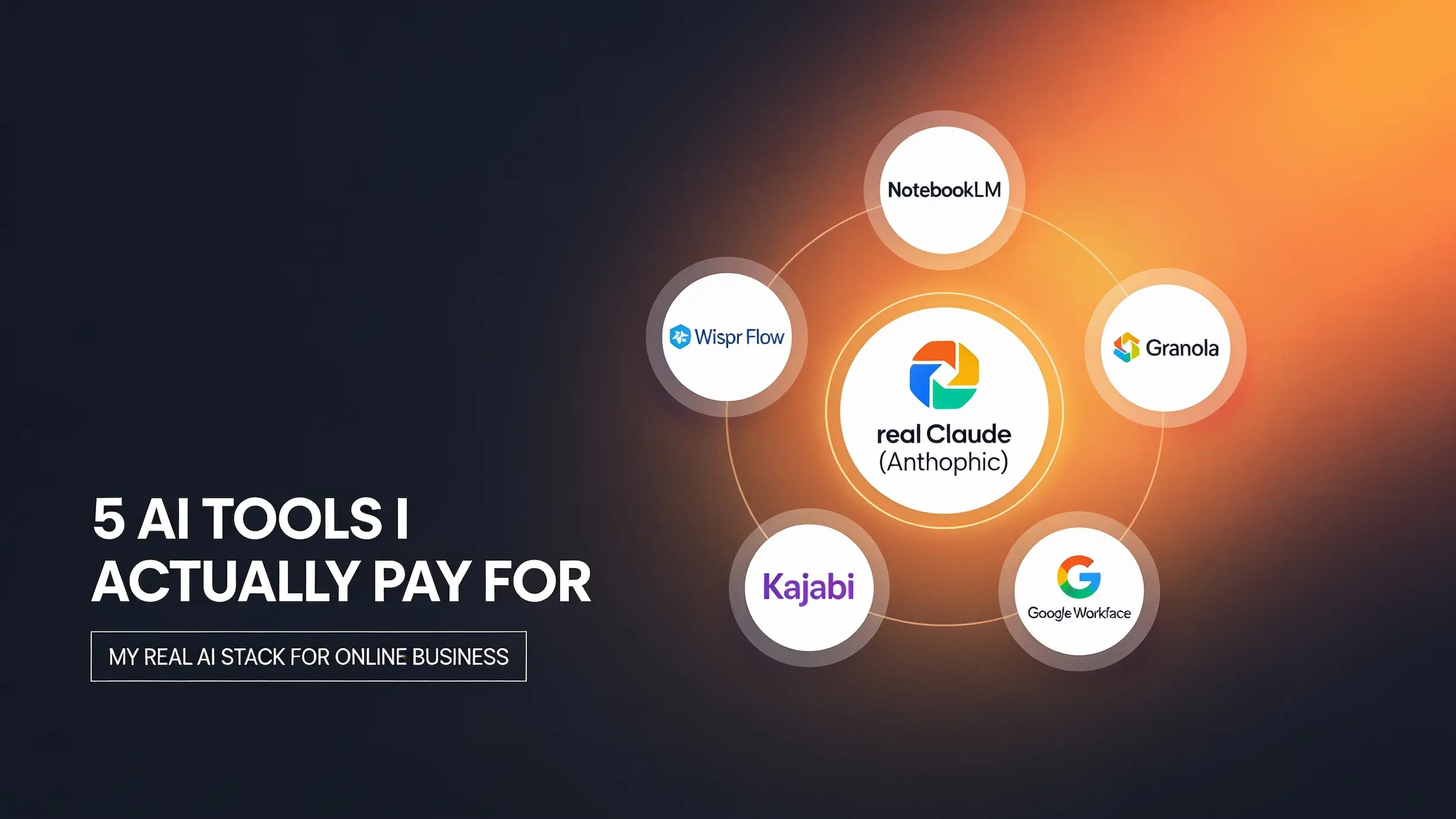
Let’s just be honest for a couple of seconds here. How many AI tools are you actually paying for right now? Tools that you’ve used maybe once or twice and they’re just sitting there draining your bank account and you not knowing how to implement them. I’ve identified only a handful of AI tools that I actually pay for and use on the regular in this online business.
The number one mistake people make in deciding whether to use AI or not is overwhelm. They’re trying to pick all the tools and trying to learn all the tools. But if you just pick one at a time and learn it and get leverage from it, then it’s a keeper.
Quick note before I get into it: some of the links or tools mentioned below may be affiliate links, meaning I could earn a small commission if you sign up through them, at no extra cost to you.
Tool 1: my go-to for research
The first AI tool I pay for is NotebookLM. It’s part of the Google suite. I do pay for Google Workspace, which gives you the next level access to all of the Google products, so I actually pay indirectly for NotebookLM. I use this as a starter for 10 for any research that I do. NotebookLM is really good at taking what you give it. You can feed it information and then it actually generates a number of things for you. I have one that I’ve used to study anything about a YouTube brand account or a YouTube personal account.
I create videos for YouTube like this one. You can feed into it YouTube videos and it will grab the transcript of a YouTube video. This and Google Gemini are fantastic for getting transcripts from YouTube videos. All of the other AI platforms really struggle to get that transcript from YouTube videos. It’s something to do with being on the very same platform, which is Google. You can chat back and forth with it to try and identify what output you want. Within the studio, you can generate anything from an audio overview, which is my personal favorite, a slide deck, video overview, mind map, reports, flashcards, quizzes, infographics, or data tables.
This is really good at taking the specific inputs, the sources that you give it. In my experience it doesn’t tend to hallucinate, because it’s just going to go with the sources you give it, do the research with that source data, and then give the output that you want. This is really good when I’m studying YouTube, seeing what’s working, having a look at certain videos, and trying to create better videos for that platform. That’s the first one I actually pay for.
Tool 2: how I stopped typing
The second tool I pay for is called Wispr Flow. I’m not very quick at typing. It’s a standalone AI tool that allows you to speak into it and then it just starts typing. The reason why I like this tool and it’s doing so well is it’s a standalone app. It’s not integrated into any one of your tools on any platform. You can have it on your desktop or your mobile, and any app that you’re using within that platform, you can use this as an overlay.
According to the app’s own stats, I’m typing or speaking around 185 words per minute, which it puts in the top 1%. This has really helped me speed up the process when I’m talking. I hardly type anymore. All the point of AI is to try and be more productive, save time, and get a better output as well. That’s why I pay for this AI tool, Wispr Flow. I’m quite happy to pay for it within my AI stack, because I use it every single day and it saves me so much time.
Tool 3: the meeting game-changer
The third tool I pay for is Granola, an AI note-taking tool. The reason why this is so good is because, again, it’s a standalone platform. No longer do you have to have Fathom or some other AI tool join the meeting and pop up as a new individual. It’s quite creepy to me. This is an AI notetaker that just sits in the background on your desktop. When you have a meeting, it’s transcribing the audio. On top of that, if you were to meet someone in a coffee shop, you could flip open your laptop and Granola will start recording, obviously with the consent of that individual.
Any meeting you have now, whether it’s via Zoom, digitally, or in person, Granola can take notes for you. The best bit about this is it gives you summaries. It gives you actions. It gives you the whole transcript, and then it identifies any follow-up actions for you and what you need to do. With this, you’ve got a good basis to take that transcript and feed it into another AI tool, like this next one I’m about to talk to you about.
Tool 4: the one I use most these days
The fourth AI tool that I’ve been using so much these days is Claude. If you’re using ChatGPT or Grok, a lot of people are moving over to Claude. It’s personal preference. I’ve seen good results working with Claude, especially with their desktop version. You can have the standard chat, but then it also has Cowork. Claude Cowork is kind of like Claude Code. Claude Code, if you’re designing apps, Claude Cowork can execute on tasks. It’s fully agentic, can take control of your computer and your desktop, and start doing actions for you. With great power comes great responsibility.
Make sure you understand exactly what access you’re giving this tool, because it can do so many things. You can allow or restrict access by going into your connectors and managing them from there. For example, in Gmail I’ve got read-only tools and write/delete tools, and I’ve set it so it can always read my emails, but it has to ask me for approval before it creates anything else. It gives you a disconnect option and ways of adjusting what access you’re giving each of these different connectors, like Google Calendar and Google Drive.
A quick example of how I actually use Wispr Flow
You just hold down the function key and then speak into it. Wispr Flow transcribes what I’m saying straight into my computer. It can type out over 180 words per minute. All I do then is release that key and it’s done. This is how I talk to my AI tools. I barely touch the keyboard anymore. Once you hit return, it’s going to respond to you.
The connection of all these AI tools just makes it such a powerful combination. I have Granola to record all of my meetings. I have Wispr Flow to chat into claude.ai, and I have Claude spit out any files or documents derived from those two interactions.
Tool 5: the bonus tool nobody’s talking about
The fifth and final tool I want to talk about, if you’ve been vigilant, you might have already spotted this within my connectors. If I go to manage connectors, this is Kajabi. Kajabi is the platform I know and love, and I’ve built my entire online business on it. They’ve just released their MCP, and MCP just stands for Model Context Protocol. It’s just a way for AI agents or AI bots to chat with platforms that you use. If you go and browse connectors, you’ll see a lot of these software platforms have MCPs embedded. You can actually connect up any of these tools and ask Claude to take action within a certain tool.
Within Kajabi, they’ve just released it as a custom MCP right now, but they’re rolling out and increasing its functionality. I’ve set it up so most actions need my approval, but it can already pull up a blog post, draft an email, send out an email broadcast, or get a coaching program, among other things. Right now it’s got 63 read-only tools and 47 write-and-delete tools. It can add an email sequence, create an announcement, create a blog post, and all of these currently require my approval to go ahead.
Over the next few weeks and months, you might see some more content from me testing this Kajabi MCP out, linking it in with Claude, because if I go into my Kajabi account, my AI assistant is already Claude, linked up as of today, at the time of this filming. I’m just going to be testing it to see how Claude can go into my Kajabi and take action on my behalf, whether that’s creating landing pages, email sequences, or blog posts, anything listed in that tool’s permissions. The future is exciting.
How to pick your own AI stack
If you’re building a one person online business, there are so many AI tools out there to choose from, but these are my five paid tools that I actually pay for on a monthly basis. They’ve not only increased my productivity, they’ve saved me a ton of time. They’re relatively cheap if you consider paying for an employee in replacement. But if you’re just getting started in online business and you’re curious to see what other tools I use in this one person business, I have a free PDF guide for you as a checklist. Head to timman.com/tools and get the checklist of all the tools I use, not just AI tools, free and paid, in one simple checklist.
Do your due diligence. Pick just a handful of tools that connect with each other. They’ve got to add value to you and your online business in terms of either output, workflow, or time saved.