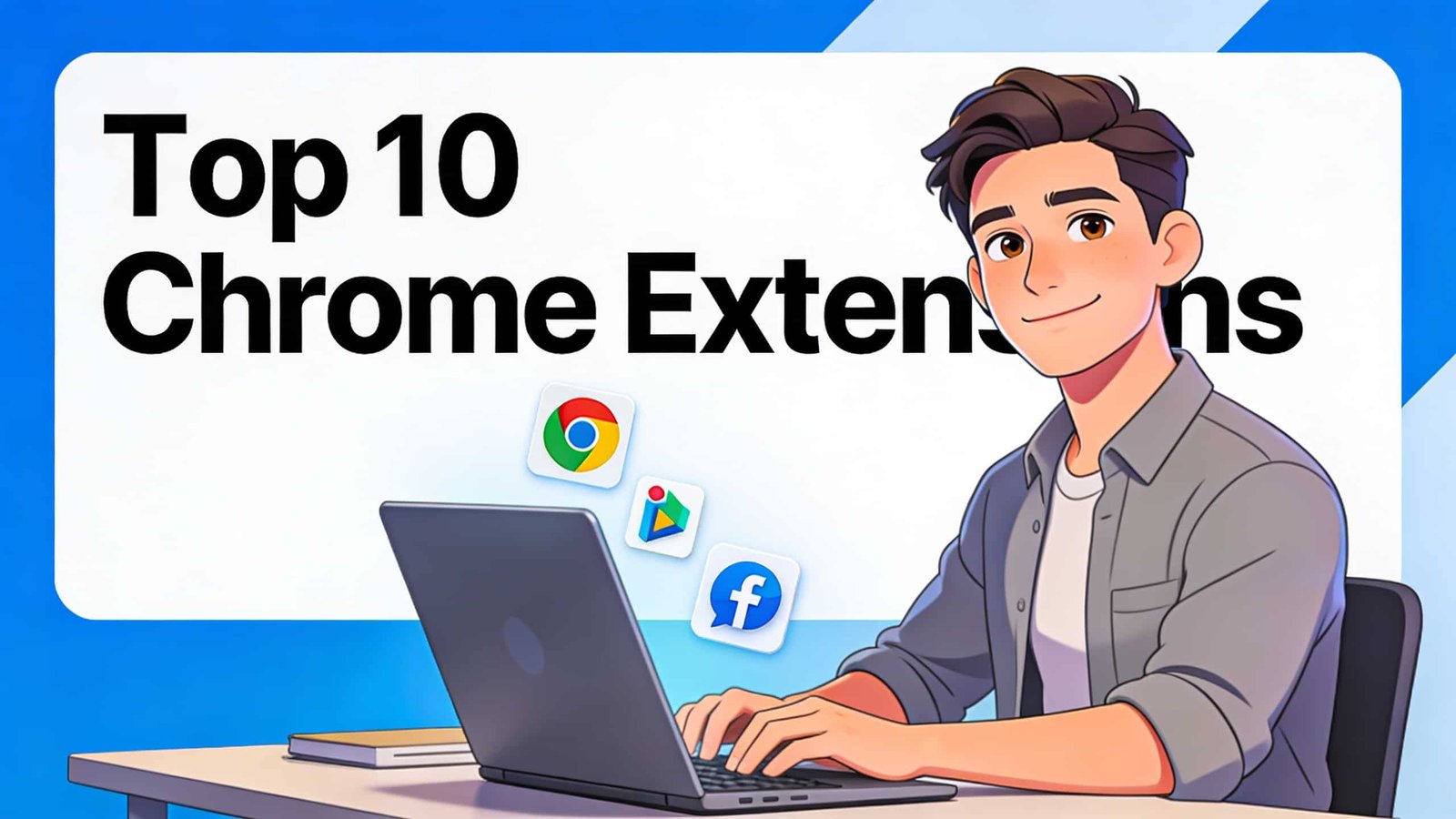
Roundup of Our Top Ten Favorite Chrome Extensions
Eliminating Writing Errors with the Grammarly Assistant
This is a roundup of the top 10 favorite Chrome extensions, covering the absolute best in a variety of categories, including a great replacement for one that is no longer supported by Chrome. These can be used with Chrome and other Chromium based browsers like Brave, Microsoft Edge, Opera, and Vivaldi.
Spelling & Grammar Checker First up, Grammarly is still the best to help eliminate spelling, grammar, and other writing errors. It’s better than those built into other services, including other AI assistants, and can be used on most sites where you write on the web, including Google Docs, Gmail, Facebook, and many others. Just look for the errors underlined in red, then hover your cursor over those errors to see the suggested fixes to correct those issues.
Correcting Writing Issues and Using Print Friendly Tools
Click the corrected text in green to fix the problem. Grammarly does offer both free and paid plans. For free, it offers the basic features most people would ever need. And their pro plan with more advanced features is $12 per individual per month.
Makes Print Friendly Web Pages Print friendly. It’s great for those times you need to print out a page from the web to get rid of the unnecessary ads and images. This can help to reduce the number of pages printed, saving on paper and printer ink. On a page like this with tons of ads, embedded video, and other clutter here at the top to the right of the address bar, click the print friendly icon and then click on print friendly page. You’ll notice this looks a lot better without all the clutter. There are various tools at the top to adjust the size of the text and page size.
Adjusting Text Size and Boosting Browser Audio Volume
There are editing tools and a highlighter. And when you’re ready to print it out, click print here at the top. You can also save it to your computer as a PDF, email it to someone, or take a screenshot of it.
Increase Volume Volume Master is a fantastic extension for those times the volume is too low on a YouTube video, the dialogue for a show you’re watching on your computer is too low, or any other time you need to increase the volume. To use it, simply click on the volume master icon to the right of the address bar. Using the slider, you can boost the volume up to 600%. Just be careful with this not to blow out your speakers. If you’re having difficulty hearing the dialogue because of loud music or some other reason, clicking voice boost should help.
Saving Web Content and Integrating with Google Drive
Archiving Links and Images Directly to Cloud Storage
Saves to Google Drive For those who use Google Drive cloud storage, this extension from Google called Save to Google Drive is quite useful to save web content like videos, website links, images, and various types of files to your Google Drive to view at a later time. For example, when you’re signed in to your Google account, if you see a link on a web page you’d like to save for later, right click on it and select save link to Google Drive. Also, if you see an image that you want to save, right click on it and select save image to Google Drive.
Dark Mode for Websites Dark Reader is one that needs to be included in any top 10 of Chrome extensions. Using it enables a dark mode on most websites by inverting the colors, making them easier to read and easier on your eyes.
Customizing Website Visuals and Managing Secure Passwords
Configuring Dark Reader Settings and User Donation Options
For example, on a site like this with a ton of white space, it can be hard on the eyes for some. To enable dark reader, click on its icon to the right of the address bar and select on. With it turned on, with the colors inverted, it’s easier to look at. There are other settings to play around with. Switching from dark to this extension’s light mode is less bright than a typical website. And you can adjust the brightness, contrast, sepia, and grayscale.
This extension is completely free. If you want, you can donate to the developer by clicking on pay for using Dark Reader. This will open a new web page. If you’re able to help out to support the further development, they’re asking for a onetime payment for individuals of around $10 and for organizations around $20 per user.
Implementing Secure Credential Management with Bit Warden Features
Best Password Manager Bit Warden is the absolute best password manager, free or paid. While Chrome does offer its own password management solution, Bit Warden has improved security and a bunch of advanced features. The free plan for Bit Warden has just about every feature most people would ever need and can be used on unlimited devices. Their premium plan for just $1 per month adds additional features including the ability to encrypt file attachments.
Amazon Price Charts & Tracker If you shop on Amazon, Keepa is a must-have extension. Similar to the website camel camel camel. Keep a gives you price charts to help make sure you’re getting the best deal. Once Keepa is installed, when you’re on a product page on Amazon to see the price chart, scroll down below the initial description.
Analyzing Amazon Price History and Tracking Future Deals
Utilizing Keepa Charts and Automated Price Notifications
Unlike camel camel camel, Keepa embeds this on the Amazon product page itself. With the chart, you can add or remove filters here on the right. Right now, this external hard drive, brand new, is on sale for around $162. And we can see here that at its peak, brand new was around $229. So right now it’s a pretty good deal. If you have an account with Keepa and select track product, when you set a desired price and select start tracking, you’ll get notified when the price drops below what you entered here.
Content Blocker Ublock Origin Light is the best alternative to Ublock Origin, the popular ad blocking extension that is no longer supported in Chrome, and it’s from the same creator. It’s good at blocking ads, trackers, and cryptominers.
Understanding Filtering Modes and Identifying Web Trackers
It works a little bit differently. Click on its icon to the right of the address bar, and you’ll see that it has four filtering modes: no filtering, basic, optimal, and complete. Keeping it on basic means some ads will slip through. On sites with way too many ads that take up a third or half a page, switching this to complete is the better option.
Tracker Blocker A good complement to Ublock Origin Light is Privacy Badger, created by the Electronic Frontier Foundation. It automatically blocks trackers based on behavior that other blocking extensions may have missed. Including the link click tracking on Facebook and Google. When you click the privacy badger icon, it will show you the trackers that are being blocked on this site.
Managing Domain Blocking Sliders and Privacy Permissions
Potential trackers are being blocked. For each domain listed, if the slider is all the way to the left in red. It means that it’s blocking everything from that domain. In the center in yellow, it’s blocking cookies only. And if the slider is all the way to the right in green, it’s allowing everything. It is not recommended to adjust these because it could cause some websites to not load properly.
Easily Enable/Disable Extension Extensity makes it easy to quickly enable and disable the extensions you have installed. So you don’t have too many enabled, slowing down your browser. When you click on its icon to the right of the address bar.

Optimizing Browser Performance and Extension Organization
Toggling Active Extension States and Managing System Speed
The full list of extensions is visible. Clicking on an extension that is grayed out will enable it. And clicking on one that is enabled disables it. If you want that extension pinned to the right of the address bar, click the extensions icon. Find the extension, then click on the pin. You can unpin here as well.
Final Browser Customization and Community Feedback Integration
These extensions cover a wide range of categories. Including a great replacement for one that is no longer supported by Chrome. They can be used with Chrome and other Chromium based browsers like Brave, Microsoft Edge, Opera, and Vivaldi. Just be careful when boosting volume not to blow out your speakers. If you’re having difficulty hearing the dialogue because of loud music or some other reason, clicking voice boost should help.
For those who use Google Drive cloud storage. The Save to Google Drive extension is quite useful to save web content like videos, website links, images. And various types of files to your Google Drive to view at a later time. Also, if you see an image that you want to save, right click on it and select save image. Read More